thankQ Help
A Word template is required for Hard copy letters as well as Merge to PDF (Email).
To insert a hyperlink into the document do not copy or use an existing template.
1.Click Create New Merge Template under the Communication Modules

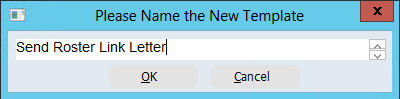
2.Enter a name for the template, click OK
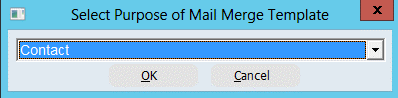
3.Select the Contact folder for the location of the template, click OK
4.Select to Create a new template, do not copy an existing template.
5.Once Word opens create or edit the template inserting merge fields from the Mailings tab as required
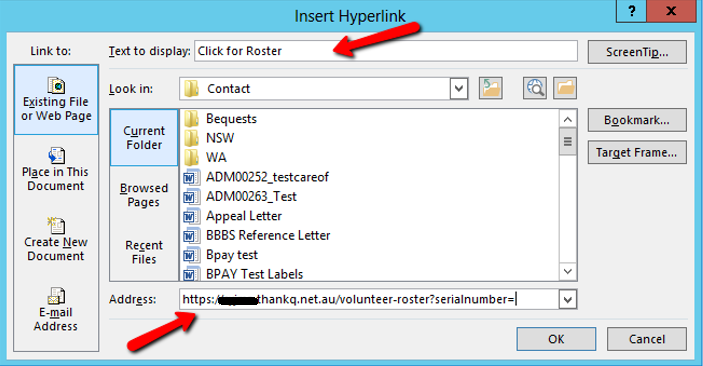
6.Click the Insert tab and select Hyperlink from the Links drop down

7.Enter the Text to display and the web Address, click OK
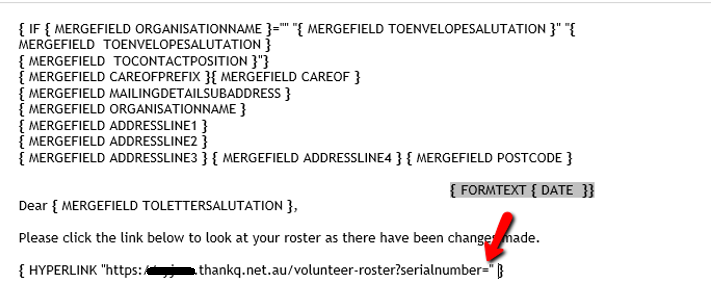
8.Hold down Alt and press F9 to open the merge fields
9.Place your cursor after the = and before the “
10.Click the Mailings tab
11.Click Insert Merge Field
12.Locate PARAMETERVALUE14 and insert into document
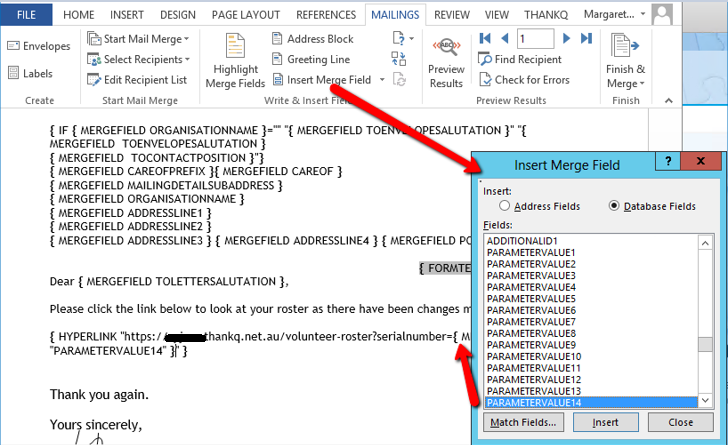
13.Click Close
14.Place your cursor after the merge field

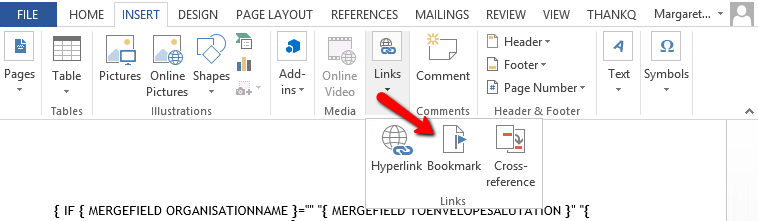
15.Under the Insert tab select Bookmark from Links
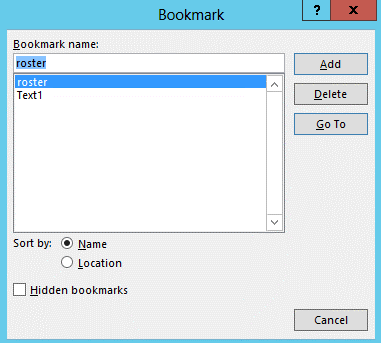
16.Enter a name for the bookmark e.g. Roster
17.Click Add
18.Hold down Alt and press F9 to close merge fields

19.Exit and Save from Word