thankQ Help
Sometimes when you RDP to another computer and open thankQ you may find that there are certain problems with icons on the screen not being properly aligned with the mouse cursor.
Symptoms: If you attempt to highlight something in Lookup Values or Power Search you find that the menu item you tried to select is not being selected, instead another item that might be a few rows down is being selected instead. Another problem: When the Actions reminder window opens the Dismiss button is invisible. This issue often arises when switching to another computer but logging into the same remote server.
Solution: There is a problem with the way Microsoft Windows handles the screen resolution between the computer and the RDP session. To resolve this please follow these steps:
1. Download the following file: RDPResolutionDPIFix.zip and save it to your disk. Please note that this needs to be saved to your main computer, not the computer you are connected to via RDP.
2. Unzip the file in the same place you downloaded it to. This will be a batch file called RDPResolutionDPIFix.bat
3. Right click on the RDPResolutionDPIFix.bat file and select Run as Administrator. If prompted enter the Windows Administrators credentials. If you do not have Windows Administrator access you will need to contact your System Administrator or IT to do this login for you.
4. When the batch file has finished running please check it for errors, if it has been successful the output should look similar to this:
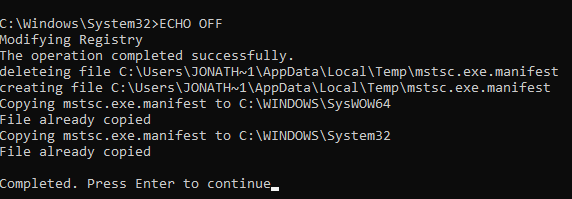
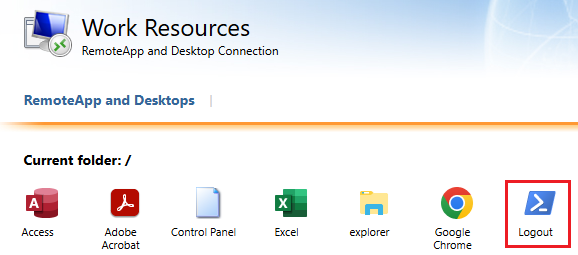
5. After this log off of the RDP session completely. Make sure that you are fully logging off and are not just Disconnecting the session. If you are a thankQ cloud customer you can perform a full log off by using a special log off script that is accessible in the initial cloud landing page:
6. Once you are fully logged off you can then log back in to the RDP session and the issue should then be resolved.
7. Note: Sometimes after applying this fix you may get a second error (this sometimes occurs on multi-monitor setups):
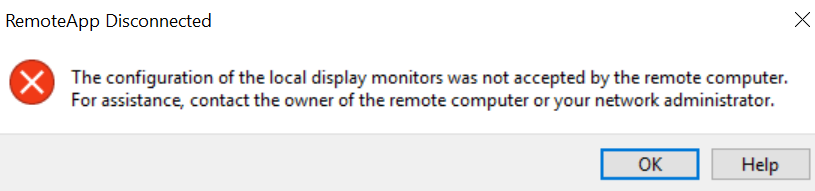
If you get this error do the following:
a) Set your screen resolution to at least 1600X900
b) Set the size of text, apps and other items to 125%. See screenshot below:
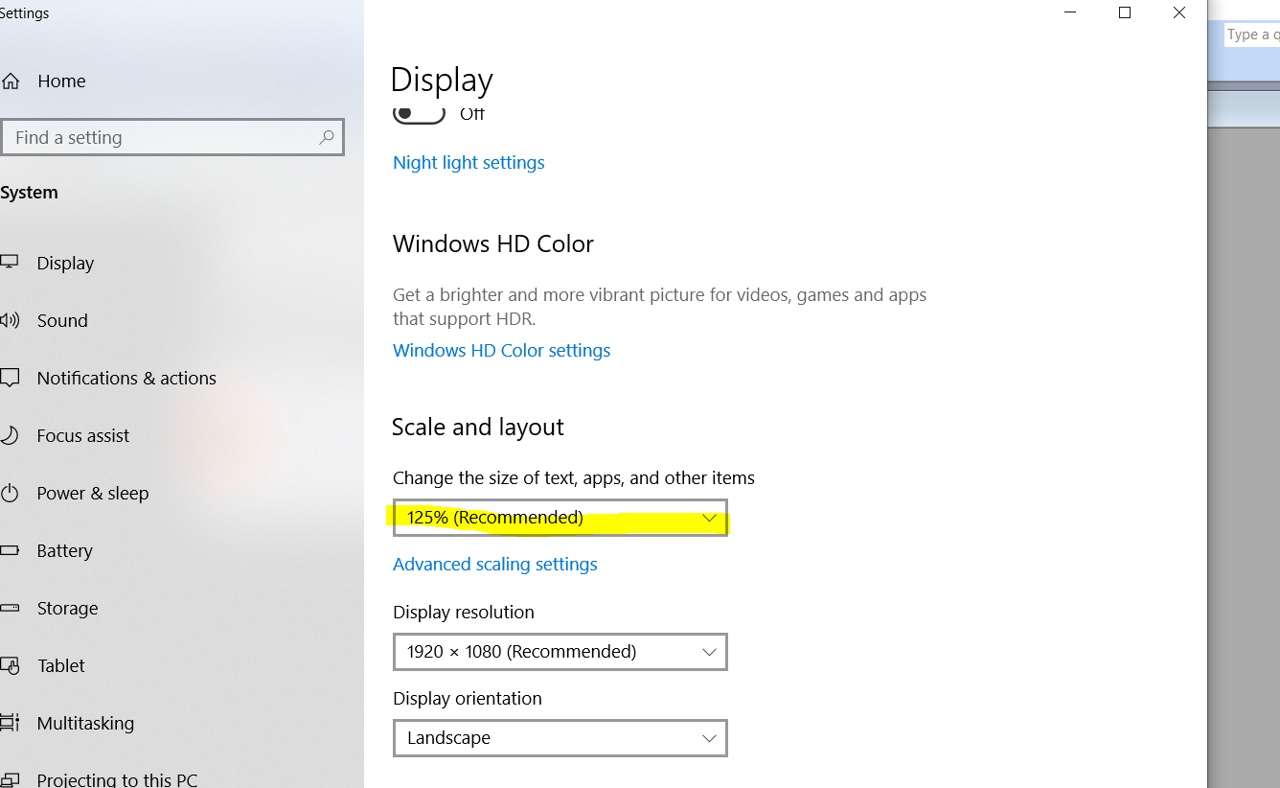
c) Restart your computer.
d) Before you attempt to login again make sure that you disable all of your monitors except the screen that you intend to run thankQ on (you should only need to do this once).
e) Login to thankQ again and after this you can enable all of your monitors again.